Monday, February 17, 2014
How to Install a Printer
Printers have become a must household item that many computer companies have packaged computers with inexpensive printers. However, despite the fact these printers were being shipped with a specific computer, these printers can be installed on any other computer as well. Theore, knowing how to install a printer is important. While it is straight forward, it can be confusing on how to configure it to the specific computer.
How to Install a Printer
Find a suitable place for the printer and set it up there so that the cables can reach the computer as well as an electrical outlet. Because printing has become increasingly precise, it is important to keep the printer flat. Once it is set up and it has been plugged in, turn the computer on. When it loads, the computer will prompt you to recognize and install the software that goes along with the hardware.
Put the installation CD into the computer and let it load. If you dont have the CD, typically you can find the drivers on the companys website. When the installation software opens, set up the installation and put it into a folder where youll remember where it is. Install the software and then allow it to run through. Once it has installed, restart the computer to ensure that all the components get added properly.how to Install a Printer
Now that the computer has been added, its time to make it the default printer. Open the control panel and double click on the printers tab. This will open up and share a list of all the current printers that you have on this computer. Pick the one that you just installed and open the details. It will ask whether or not you want this to be the default printer. Press the yes button and then hit apply before closing this tab down.
Finally, open a word document and do a test print. If it is the first time the printer is being used, itll print an elaborate scheme of colors and text to make sure everything is working. Then, print something for yourself to finalize whether it works or not. If all looks good, the printer will have been successfully installed and can theore be used whenever it is needed.
Read more...
How to Install a Printer
Find a suitable place for the printer and set it up there so that the cables can reach the computer as well as an electrical outlet. Because printing has become increasingly precise, it is important to keep the printer flat. Once it is set up and it has been plugged in, turn the computer on. When it loads, the computer will prompt you to recognize and install the software that goes along with the hardware.
Put the installation CD into the computer and let it load. If you dont have the CD, typically you can find the drivers on the companys website. When the installation software opens, set up the installation and put it into a folder where youll remember where it is. Install the software and then allow it to run through. Once it has installed, restart the computer to ensure that all the components get added properly.how to Install a Printer
Now that the computer has been added, its time to make it the default printer. Open the control panel and double click on the printers tab. This will open up and share a list of all the current printers that you have on this computer. Pick the one that you just installed and open the details. It will ask whether or not you want this to be the default printer. Press the yes button and then hit apply before closing this tab down.
Finally, open a word document and do a test print. If it is the first time the printer is being used, itll print an elaborate scheme of colors and text to make sure everything is working. Then, print something for yourself to finalize whether it works or not. If all looks good, the printer will have been successfully installed and can theore be used whenever it is needed.

Monday, December 2, 2013
Reset Epson Fx 880
 To reset the dot matrix printer you have to do is the following
Mientras presionas los botones del panel LF/FF + LOAD/EJECT + PAUSE enciendes la impresora. While pressing the buttons on the LF / FF + LOAD / EJECT + PAUSE turn on the printer. Haciendo esto ya queda reseteada y con las opciones de fabrica. Doing this now reset and factory settings.
Sunday, December 1, 2013
Full Tank Ink Resetter on IP in 1980
To perform Full Tank Ink Resetter on IP in 1980 is usually the indicator light on the power and resume blinking repeatedly do when that happens the next steps:
First. Turn on the printer Canon iP1900
2. Press and hold the resume button for 2 minutes.
3. Release the Resume button.
4. The printer will return to normal.
5. If still not normal too, do the steps as for manual reset and Reset software
Step Manual Reset
First. Printer power cable plugs in a state separated
2. Press and hold down the power button with your index finger and then the input power cable
3. Still hold the power button, then press the middle finger Button reset button twice.
4. Release the power button
5. The printer is not blinking
6. At this stage youve completed the steps Manual Reset
7. In order to permanently software please use the Reset.
Read more...
First. Turn on the printer Canon iP1900
2. Press and hold the resume button for 2 minutes.
3. Release the Resume button.
4. The printer will return to normal.
5. If still not normal too, do the steps as for manual reset and Reset software
Step Manual Reset
First. Printer power cable plugs in a state separated
2. Press and hold down the power button with your index finger and then the input power cable
3. Still hold the power button, then press the middle finger Button reset button twice.
4. Release the power button
5. The printer is not blinking
6. At this stage youve completed the steps Manual Reset
7. In order to permanently software please use the Reset.
Saturday, November 30, 2013
How to Reset Epson Stylus 860

To perform the reset tiens what to do is the following:
Hay que presionar y mantener apretado el boton de LOAD/EJECT (tomar hoja) y el de Cleaning (limpieza) . We must press and hold the button LOAD / EJECT (take up) and the Cleaning (cleaning).
Mientras mantienes apretados esos botones , tienes que presionar el boton de POWER (encendido) y tenerlo apretado hasta que las luces (ink out – tinta vacia y paper out- falta papel) empiezan a titilar o parpadear. While holding these buttons, you must press the power button (on) and keep it tight until the lights (ink out - empty ink and paper out-out of paper) start to flash or flicker.
Cuadno suceda esto suelta todos los botones. When it has to happen this release all buttons.
Cuando pasen 3 o 4 segundos apreta y mantenlo apretado el boton de CLEANING (limpieza) hasta que las luces que titilaban dejen de hacerlo. When you spend three or four seconds click and hold down the button CLEANING (cleaning) until the lights flickered stop.
YA ESTA!!! NOW THIS! ya quedo lista para usarla!! and am ready to use!
Seria conveniente que cada vez que se haga este procedimiento hacer una limpieza a la esponja interna de la impresora, por que alli deja depositado todo el exceso de tinta de la impresora y podria derramarse. It would be desirable that each time you do this procedure done to clean the sponge inside the printer, because there left on deposit all excess ink from the printer and may spill. Esto no es 100 % necesario pero seria muy bueno que lo hagas. This is not 100% necessary but it would be very good to do so.
Hay que presionar y mantener apretado el boton de LOAD/EJECT (tomar hoja) y el de Cleaning (limpieza) . We must press and hold the button LOAD / EJECT (take up) and the Cleaning (cleaning).
Mientras mantienes apretados esos botones , tienes que presionar el boton de POWER (encendido) y tenerlo apretado hasta que las luces (ink out – tinta vacia y paper out- falta papel) empiezan a titilar o parpadear. While holding these buttons, you must press the power button (on) and keep it tight until the lights (ink out - empty ink and paper out-out of paper) start to flash or flicker.
Cuadno suceda esto suelta todos los botones. When it has to happen this release all buttons.
Cuando pasen 3 o 4 segundos apreta y mantenlo apretado el boton de CLEANING (limpieza) hasta que las luces que titilaban dejen de hacerlo. When you spend three or four seconds click and hold down the button CLEANING (cleaning) until the lights flickered stop.
YA ESTA!!! NOW THIS! ya quedo lista para usarla!! and am ready to use!
Seria conveniente que cada vez que se haga este procedimiento hacer una limpieza a la esponja interna de la impresora, por que alli deja depositado todo el exceso de tinta de la impresora y podria derramarse. It would be desirable that each time you do this procedure done to clean the sponge inside the printer, because there left on deposit all excess ink from the printer and may spill. Esto no es 100 % necesario pero seria muy bueno que lo hagas. This is not 100% necessary but it would be very good to do so.
Friday, November 29, 2013
EPSON STYLUS 1390 Resetter
 a. Epson Stylus 1390 Printer Driver is installed first, and make sure the printer is connect to the computer
b. Make sure you have the Software Resetter Printer Epson Stylus 1390.
c. Make sure that the damages requested in the printer reset counter (usually red flame of the lamp on the printer - and turns green print head does not move)
Here is how to use the Software Resetter Epson Stylus 1390:
1. Connect the power cable and printer cable printer usb, then turn on the printer. Leave the printer in the blink condition
2. IMPORTANT!!. Change dates to now.
If not changed then the software can not be changed and will display an error message:
tutorial resetter Epson 1390
3. Open Software Resetter Epson Stylus 1390.
4. Click Accept.
5. Select Particular Adjustment mode. At the Maintenance menu, select Waste ink pad counter
6. Click Check to see the results of the last counter value
7. Click OK to continue
8. Here is the display counter values results from the printer
9. Click initialization to process reset counter
10. Click OK, and then turn off the printer and unplug the power cable
11. Reattach the power cable and turn on the printer. Wait until the printer calibration is completed
12. After the printer is ready, click on Check to see value in the counter after reset. Click OK to continue
13. The final result after the reset counter value using Software Resetter Epson Stylus 1390
Thursday, November 28, 2013
Epson Stylus 600 printer resetter

This procedure is to reset the Epson Stylus 600 printer when are the lights will blink and will not let you print.
Para realizar el reset lo que tiens que hacer es lo siguiente: To perform the reset tiens what to do is the following:
Hay que presionar y mantener apretado el boton de LOAD/EJECT (tomar hoja) y el de Cleaning (limpieza) . We must press and hold the button LOAD / EJECT (take up) and the Cleaning (cleaning).
Mientras mantienes apretados esos botones , tienes que presionar el boton de POWER (encendido) y tenerlo apretado hasta que las luces (ink out – tinta vacia y paper out- falta papel) empiezan a titilar o parpadear. While holding these buttons, you must press the power button (on) and keep it tight until the lights (ink out - empty ink and paper out-out of paper) start to flash or flicker.
Cuadno suceda esto suelta todos los botones. When it has to happen this release all buttons.
Cuando pasen 3 o 4 segundos apreta y mantenlo apretado el boton de CLEANING (limpieza) hasta que las luces que titilaban dejen de hacerlo. When you spend three or four seconds click and hold down the button CLEANING (cleaning) until the lights flickered stop.
YA ESTA!!! NOW THIS! ya quedo lista para usarla!! and am ready to use!
Seria conveniente que cada vez que se haga este procedimiento hacer una limpieza a la esponja interna de la impresora, por que alli deja depositado todo el exceso de tinta de la impresora y podria derramarse. It would be desirable that each time you do this procedure done to clean the sponge inside the printer, because there left on deposit all excess ink from the printer and may spill. Esto no es 100 % necesario pero seria muy bueno que lo hagas. This is not 100% necessary but it would be very good to do so.
Para realizar el reset lo que tiens que hacer es lo siguiente: To perform the reset tiens what to do is the following:
Hay que presionar y mantener apretado el boton de LOAD/EJECT (tomar hoja) y el de Cleaning (limpieza) . We must press and hold the button LOAD / EJECT (take up) and the Cleaning (cleaning).
Mientras mantienes apretados esos botones , tienes que presionar el boton de POWER (encendido) y tenerlo apretado hasta que las luces (ink out – tinta vacia y paper out- falta papel) empiezan a titilar o parpadear. While holding these buttons, you must press the power button (on) and keep it tight until the lights (ink out - empty ink and paper out-out of paper) start to flash or flicker.
Cuadno suceda esto suelta todos los botones. When it has to happen this release all buttons.
Cuando pasen 3 o 4 segundos apreta y mantenlo apretado el boton de CLEANING (limpieza) hasta que las luces que titilaban dejen de hacerlo. When you spend three or four seconds click and hold down the button CLEANING (cleaning) until the lights flickered stop.
YA ESTA!!! NOW THIS! ya quedo lista para usarla!! and am ready to use!
Seria conveniente que cada vez que se haga este procedimiento hacer una limpieza a la esponja interna de la impresora, por que alli deja depositado todo el exceso de tinta de la impresora y podria derramarse. It would be desirable that each time you do this procedure done to clean the sponge inside the printer, because there left on deposit all excess ink from the printer and may spill. Esto no es 100 % necesario pero seria muy bueno que lo hagas. This is not 100% necessary but it would be very good to do so.
Download Free Epson Stylus Photo TX810FW Resetter
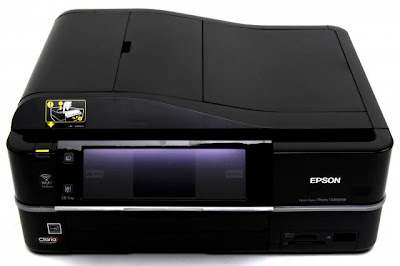
Before using the Software Resetter Epson Stylus Photo TX810FW, make sure:
a. Epson Stylus Photo Printer Drivers TX810FW already installed first, and make sure the printer is connect to the computer
b. Make sure you have the "Software Resetter Printer Epson Stylus Photo TX810FW"
c. Make sure that the damages requested in the printer reset counter (usually a red flame of the lamp on the printer all)
Here is a tutorial resetter Epson Stylus Photo TX810FW:
One. Prepare Adjustment Epson Stylus Photo Software TX810FW on your computer
2. If the software is compressed, the software used to extract resetter his Epson Stylus Photo TX810FW
3. Turn on the Printer
4. Open the folder resetter Epson Stylus Photo TX810FW Adjprog.exe you and run the file.
5. Click Particular adjustment mode menu entry to reset the printer counter
6. Find and click the Consumables menu maintenance counters, and then click OK
7. Put a check in the Main and Platen countre pad pad counters, and then click Check to find out the counter value at the time of blinking, and OK to continue the adjustment Epson tx810fw
Click initialization to change / reset the printer counter becomes zero, so the printer to be normal again. Then click OK to continue
8. Click Finish to end the process of resetting the counter Epson Stylus Photo TX810FW
9. Click Previous to return to main menu
10. Click Quit to exit the program counter reset Epson Stylus Photo TX810FW
11. Reset waste ink counter Epson Stylus Photo TX810FW already been done, turn off the printer for a while, then restart the printer, and wait until finished printer calibration
Wednesday, November 27, 2013
HP Laserjet 5 series service mode
1. Hold down the Menu+ and Value+ keys while powering on the printer. Hold the keys down until SERVICE MODE is displayed.
2. The interrupted power-on self test is resumed. If the test completes successfully, the message SERVICE MODE is displayed.
3. To exit service mode, press the Go button.
Read more...
2. The interrupted power-on self test is resumed. If the test completes successfully, the message SERVICE MODE is displayed.
3. To exit service mode, press the Go button.
Tuesday, November 26, 2013
How to reset the protection counter of Epson Stylus R7880
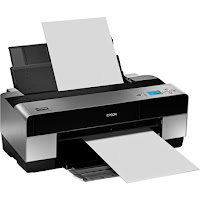
Epson Stylus Pro R7880 Adjustment Program
FIX PRINTER ERROR "parts inside printer end service life, waste ink pad counter overflow error"
Please follow the steps below to reset the protection counter effectively.
- Double click AdjProg.exe.
- Click “Accept” button.
- Click "Select" button. and select your printer model then click "OK"
- Click “Particular adjustment mode” button.
- Select on “Waste ink pad counter” and click “OK” button.
- Click on “Initialization” button and the program will reset the protection counter.
- Turn off the printer as a program instructed then turn on again.
- Click “Finish” button. and its done!
Warning: You might end up with ink leaking out of the printer if you dont either replace the waste ink pad or install external waste bin.
Monday, November 25, 2013
Resetting Instructions for Epson Printers by Using Adjustment Program
This procedure is applicable for all Epson printers. In fact there are two models/versions software resetters or adjustment program for Epson printer (see the picture). Some adjustment program requires date setting to run the software without error and other not require.
Model 1 of Epson adjustment program(tab version)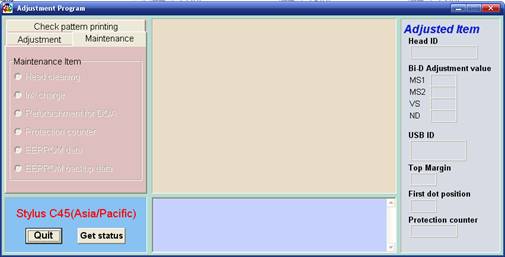
- Switch on the printer.
- Set computer date setting (if the adjustment programs require date setting).
- Run the adjustment program.
- Set printer model then click ok (if exist, usually there are adjustment program can be used at more than one printer).
- Click Maintenance Tab
- Check Protection counter.
- Click protection counter to reset counter to zero.
- Then click Ok, Ok
- switch off printer for 5secs then switch on again
- done
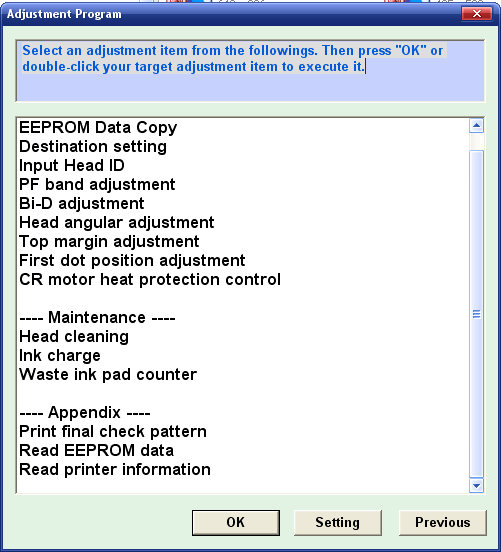
- Switch on printer.
- Set computer date setting (if the adjustment programs require date setting).
- Run the adjustment program.
- Set printer model then click ok (if exist, usually there are adjustment program can be used at more than one printer).
- Click particular adjustment mode.
- Select waste ink pad counter in the maintenance section then click ok or double click the menu.
- Click on “check button” or “read button” till its done then click on “initialization button” then click “finish”.
- switch off printer for 5secs then switch on again
- done
Sunday, November 24, 2013
Resetter canon 1980 1880 iP2500 iP1900 iP1100 iP1800
Error printer Always appear message:...
“The Ink Absorber is Full
Contact The service Center”.
Or Ink Full Tank usually indicator lamp on power and resume blinking many times
But don’t be afraid, You just follow this step :
Manual Reset Steps :
1. Press and hold power button with your finger and then take in power cable
2. Hold power button, then press resume button with your middle finger twice.
3. Let in power button
4. Printer doesnot blinking any more.
5. At this step you had done Manual Reset Step and printer could be use again.
6. But if manually your printer still error, you should use Reset Software permanently
Read more...
“The Ink Absorber is Full
Contact The service Center”.
Or Ink Full Tank usually indicator lamp on power and resume blinking many times
But don’t be afraid, You just follow this step :
Manual Reset Steps :
1. Press and hold power button with your finger and then take in power cable
2. Hold power button, then press resume button with your middle finger twice.
3. Let in power button
4. Printer doesnot blinking any more.
5. At this step you had done Manual Reset Step and printer could be use again.
6. But if manually your printer still error, you should use Reset Software permanently
Saturday, November 23, 2013
HOW TO RESET CANON PRINTER PIXMA IP1980

Canon PIXMA iP1980 Photo Printer is same as Canon Pixma ip 1880,
TO FIX PRINTER ERROR "parts inside printer end service life, waste ink pad counter overflow error, waste ink absorber full error you should use General resetter Tools for Canon Pixma ip 1880.
How you can reset ink level on Canon Pixma iP1800
Step1. Press and hold the power button while plugging in the powerchord - green lamp will glow.
Step2. Hold the power button and press the resume button twice - the orange lamp will blink and return to green.
Step3. Release the power button - the prnter will be ready.
Step4. Print a test page.
Step5. Printer is Ok Now.
You Can Use General Tool Also To Reset iP1980.
Download General Tool
Friday, November 22, 2013
Resetter Epson Stylus Photo 1390
Need adjustment program or software resetter for Epson Stylus Photo 1390, download the software from download link below. To use this software is easy but this software only work on Windows XP. If you use newest windows version such as windows 7 You can use comparability mode to run this software without error. The unique feature on this software, this having shipping setting in maintenance menu feature. This function is implementing in case of nozzle expulsion troubles caused by the transport. This function will cleaning the printer and performed automatically when the printer is turned on.
Epson Stylus Photo 1390 is a Spectacular Epson printer and this printer can print Up To A3+ Size. Other feature, this printer using cost-efficient INKdividual cartridges to rediuce cost when printing.
 Reset waste ink Counter using adjustment program Epson Stylus Photo 1390
Epson Stylus Photo 1390 is a Spectacular Epson printer and this printer can print Up To A3+ Size. Other feature, this printer using cost-efficient INKdividual cartridges to rediuce cost when printing.
- Turn on the Printer.
- Set date setting in your computer to 4 October 2007.
- Run Adjustment Program by clicking “AdjProg.exe”.
- Select Accept
- Select Particular adjustment mode
- Select “Waste ink pad counter – OK
- Click Initialization to reset current protection counter to “Zero”.
- Turn off printer and turn on again.
Resetter Epson CX5500
To run resetter Epson cx5500 no require date setting in your computer. But I’m not sure with this software, because the appearance of this Epson CX5500 resetter different from other Epson adjustment program. Unfortunately I did not found alternative software resetter other that this software.
Epson Stylus CX 5500 All in One printer with DURABrite Ultra Ink. This printer can print and copy with one-touch buttons with print speed up to 25 ppm (page per minutes) and can print image up to up to 5760 x 1440 dpi. This printer also can directly scan to PC at 600 dpi.
 How to run software resetter Epson cx5500
Epson Stylus CX 5500 All in One printer with DURABrite Ultra Ink. This printer can print and copy with one-touch buttons with print speed up to 25 ppm (page per minutes) and can print image up to up to 5760 x 1440 dpi. This printer also can directly scan to PC at 600 dpi.
- Download and extract the file.
- Run “ServiceFT.exe”
- Select waste ink pad counter from maintenance item, double click to execute it.
- Click Initialization button to reset current protection counter to Zero.
- Read(again) after “0″ press finish
- Choose set shipping data (bottom menu)
- Choose set
- Wait for a while (about 1 minute)
- If there is a reaction from the printer (it will load some paper or you hear “klothak” sound), the reset process will be done. turn off the printer and then turn on again. repeat read the EEPRsaya
- If there is no reaction from the printer, repeat step 1
Thursday, November 21, 2013
Resetter Epson TX100 and Epson TX105
Require working resetter for Epson TX100 and TX105 please download this adjustment program. Like my previous software resetter epson TX series to run this software without error don’t click AdjProg.exe directly. You can run this adjustment Epson TX100 and TX105 software by clicking loader exe.
Epson Stylus TX100 and TX105 is a multifunction printer designed to deliver high quality results for all your printing, photocopying and scanning. This epson printer can print up to 5760 dpi with Variable-Sized Droplet Technology and it having print speed 26 ppm for black text and 14 ppm for color text on A4 paper size.
How to reset counter epson TX100 or Epson TX105 with this software.
Update: New download link in mediafire : http://www.mediafire.com/file/mzezmztzmkg/TX100-TX105.rar
note: no warranty all problem caused by this software on printer. Use this software as your own risk
Epson Stylus TX100 and TX105 is a multifunction printer designed to deliver high quality results for all your printing, photocopying and scanning. This epson printer can print up to 5760 dpi with Variable-Sized Droplet Technology and it having print speed 26 ppm for black text and 14 ppm for color text on A4 paper size.
How to reset counter epson TX100 or Epson TX105 with this software.
- Run the software (Adjustment TX100 and TX105 no instalation require). Then click accept button. Click select button to seledt your printers type. Available two coiche. Epson TX100 or Epson TX105, Ok. Click paticular adjustment mode.
- Click waste ink pad counter from maintenance menu, OK.
- Click check to view status counter of your printers. Click initialization to reset the counter.
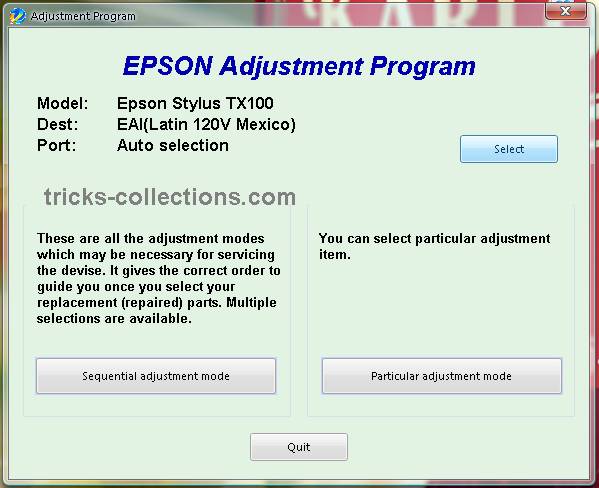
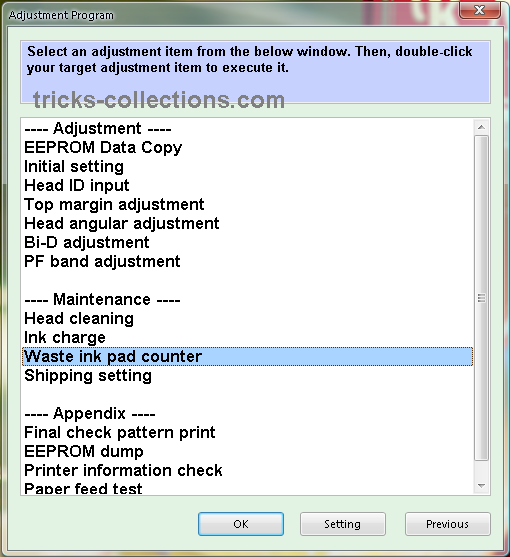
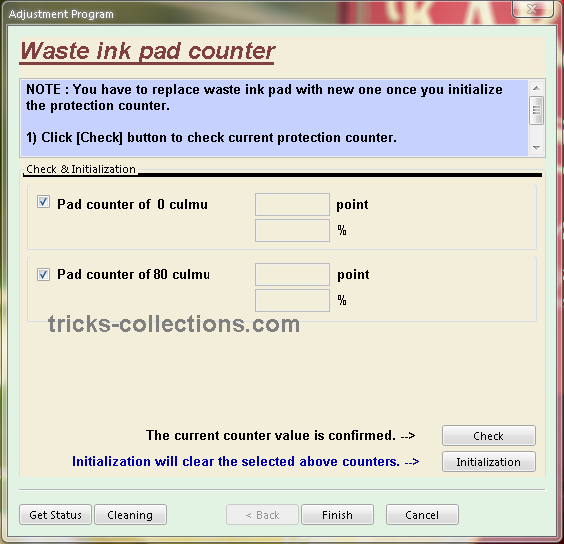
Update: New download link in mediafire : http://www.mediafire.com/file/mzezmztzmkg/TX100-TX105.rar
note: no warranty all problem caused by this software on printer. Use this software as your own risk
Wednesday, November 20, 2013
Reset waste ink pad counter overflow error for Epson L100 printer
.png)
Reset waste ink pad counter overflow error for Epson L100 printer
FIX PRINTER ERROR "parts inside printer end service life, waste ink pad counter overflow error"
Resetter of Epson L100 printer and How to Use it :
Reset tool of epson L100 can be downloaded at the following link Ziddu:
Password: www..comExtract using unzip program.
steps:1
Turn on Epson L100 and make sure that Espon L100 printer is connect to the computer.
Then run Reset tool AdjProgcracked.exe, by double clicking the file "AdjProg cracked.exe"
Step:2
Click "accept" Next "Particular Adjustment Mode" Then Select "Waste ink pad counter reset"
Next click "Check" Then uncheck "play pad counters, FL Boxes counter, tube Ink Counter", then click the "initialization" Then "Finish".
Step:3
Turn off the Epson L100 printer, then disconnect the power of the printer.
Step:4
Reattach the power cord and turn on the printer, wait a while until Epson L100 ready.
Now Epson L100 is ready for use again.
Tuesday, November 19, 2013
How to Reset Waste Ink Tank Canon MP390 and Canon MP360
 Canon MultiPass MP390 Multifunction Review
The Canon MP390 is a great multifunction printer for small homes. For most homes and small businesses, space is a consideration when buying office machines, which is exactly why multifunctions like the MultiPass MP390 from Canon are such a popular choice. By combining printing, copying, scanning, and fax functions into one convenient unit, you can save on valuable desktop space, while taking advantage of all the functionality normally provided by four separate peripherals. The MP390 can also print high-quality color photos directly from compatible cameras and memory cards.
Canon MultiPASS MP360 is All-in-One (Printer - Copier - Scanner) multifunction Inkjet printer, designed for home and small office.
Manual Reset procedure Waste Ink Tank for Canon MP390 and Canon MP360 Just Follow this step to reset waste ink tank full:
- Start with printer on, press aadditional functions, Scan, Copy, Scan. Now you should be in service mode.
- Select Test mode which is like the last available selection
- Select #8 Printer Test, it will do something here like cleaning or something then it will come up with some other option this is where it gets a bit confusing cause now all it says is like 8-2 or 8-3 push the + or - button until it says 8-3 then hit the select button
- The menu will now say EEPRsaya Clear
- Select Ink count which is option (0) and press set
- Then press Reset Followed by the power button and then wait for it to restart.
Monday, November 18, 2013
Reset Canon MP198
Manual Reset Canon MP198 and Resetter for Canon MP198 How to Manual Reset Canon MP198 and Resetter for Canon MP198. Canon MP198 Printer is a new canon printer. Here is procedure for manual resetting canon MP198 :
1. Start with printer OFF
2. Hold down STOP/RESET and then hold down POWER
3. Release STOP/RESET (don’t let go of the power just yet)
4. press RESUME twice, then release POWER
5. let green light blink until printhead has finished moving.
Read more...
1. Start with printer OFF
2. Hold down STOP/RESET and then hold down POWER
3. Release STOP/RESET (don’t let go of the power just yet)
4. press RESUME twice, then release POWER
5. let green light blink until printhead has finished moving.
Sunday, November 17, 2013
Reset Epson T50 and T60 Without Error 21000068
Get an error 21000068 when resetting your Epson T50 or T60 and not see any solution to prevent the problem. Why not try this tip. But this method not recommended for beginner user and you must understand what you are doing.
Here the reset method Epson T50 and T60 without error 21000068 :
Here the reset method Epson T50 and T60 without error 21000068 :
- Turn off printer and open printer.
- Open your Epson main PCB board. You can view an 8 pin CMOS IC. That is Epson waste ink counter IC and found on all Epson Printer.

- You can reset your printer without any resetter by following these ways.
- Soldering pin no 1,2,3,4 by wire as show in PICTURE and now turn on printer for ”20 second”

- After 20 second turn off printer and remove soldering wire from pin no. 1,2,3,4 ( back in original condition)
- Now turn on your printer
- And now your printer will be RESET
Note : This method is not recommended for beginners so you have to understand what you are doing. All problem caused by this tutorials is not our responsibility. Use this tutorial as your own risk.


Saturday, November 16, 2013
Driver Download for Canon Pixma MP520 Driver

Subscribe to:
Posts (Atom)