Showing posts with label counter. Show all posts
Showing posts with label counter. Show all posts
Tuesday, November 26, 2013
How to reset the protection counter of Epson Stylus R7880
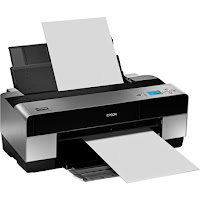
Epson Stylus Pro R7880 Adjustment Program
FIX PRINTER ERROR "parts inside printer end service life, waste ink pad counter overflow error"
Please follow the steps below to reset the protection counter effectively.
- Double click AdjProg.exe.
- Click “Accept” button.
- Click "Select" button. and select your printer model then click "OK"
- Click “Particular adjustment mode” button.
- Select on “Waste ink pad counter” and click “OK” button.
- Click on “Initialization” button and the program will reset the protection counter.
- Turn off the printer as a program instructed then turn on again.
- Click “Finish” button. and its done!
Warning: You might end up with ink leaking out of the printer if you dont either replace the waste ink pad or install external waste bin.

Wednesday, November 20, 2013
Reset waste ink pad counter overflow error for Epson L100 printer
.png)
Reset waste ink pad counter overflow error for Epson L100 printer
FIX PRINTER ERROR "parts inside printer end service life, waste ink pad counter overflow error"
Resetter of Epson L100 printer and How to Use it :
Reset tool of epson L100 can be downloaded at the following link Ziddu:
Password: www..comExtract using unzip program.
steps:1
Turn on Epson L100 and make sure that Espon L100 printer is connect to the computer.
Then run Reset tool AdjProgcracked.exe, by double clicking the file "AdjProg cracked.exe"
Step:2
Click "accept" Next "Particular Adjustment Mode" Then Select "Waste ink pad counter reset"
Next click "Check" Then uncheck "play pad counters, FL Boxes counter, tube Ink Counter", then click the "initialization" Then "Finish".
Step:3
Turn off the Epson L100 printer, then disconnect the power of the printer.
Step:4
Reattach the power cord and turn on the printer, wait a while until Epson L100 ready.
Now Epson L100 is ready for use again.
Sunday, October 6, 2013
How to Reset Waste Ink Counter Canon Pixma iX5000 and iX4000
To reset counter Canon PIXMA iX4000 or iX5000 you have to enter to service mode. Procedure to enter to service mode on Canon PIXMA iX4000 or iX5000 is as following :
Read more...
- Connect the Canon PIXMA iX5000 or iX4000 printer to the power cord. ( note : If the automatic power-on function is enabled in the printer, the printer enters the service mode for the first time, but it will never enter the service mode if the printer is turned off by the Power button. This is because the printer remains to be turned on internally if the power is turned off by the Power button. To prevent this, disconnection of the power cord is required before starting the printer in the service mode ) .
- With the Canon PIXMA iX5000 or iX4000 printer powered off, while pressing the Resume/Cancel button, press and hold the Power button. (note : Don’t release the buttons. The Power LED lights in green to indicate that a function is selectable.)
- While holding the Power button, release Resume/Cancel button. (Don’t release the Power button.)
- While holding the Power button, press Resume/Cancel button 2 times, and then release both the Power and Resume/Cancel buttons.
- When the Power LED lights in green, press the Resume/Cancel button 4 times to reset waste ink counter in the Canon Pixma iX5000 / iX4000. (note : If the Power LED does not light in green the printer does not enter the service mode, disconnect the power cord and plug it again. Then start from step 1 to start the printer in the service mode again).
- At the end of the service mode, press the Power button. The paper lifting plate of the sheet feed unit will be raised.
- Each time the Resume/Cancel button is pressed, the Alarm and Power LEDs light alternately, Alarm in orange and Power in green, starting with Alarm LED.
Monday, September 23, 2013
How to reset the protection counter of Epson L100 printer

FIX PRINTER ERROR "parts inside printer end service life, waste ink pad counter overflow error"
Please follow the steps below to reset the protection counter effectively.
- Double click Adjprog.exe.
- Click “Accept” button.
- Click "Select" button. and choose your printer model then click "OK"
- Click “Particular adjustment mode” button.
- Select on “Waste ink pad counter” and click “OK” button.
- Check on Main pad counter and click on “Initialization” button and the program will reset the protection counter.
- Turn off the printer as a program instructed then turn on again.
- Click “Finish” button. and its done!
Adjprog.exe
Wednesday, September 18, 2013
Ricoh Aficio MP W5100 usage counter
To see how many pages or feet the Ricoh MP W5100 wide format printer has printed:
- Press the User Tools/Counter button
- On the screen, select Counter
Read more...
- Press the User Tools/Counter button
- On the screen, select Counter
Subscribe to:
Posts (Atom)