Showing posts with label canon. Show all posts
Showing posts with label canon. Show all posts
Sunday, November 24, 2013
Resetter canon 1980 1880 iP2500 iP1900 iP1100 iP1800
Error printer Always appear message:...
“The Ink Absorber is Full
Contact The service Center”.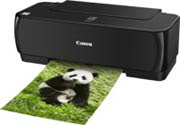
Or Ink Full Tank usually indicator lamp on power and resume blinking many times
But don’t be afraid, You just follow this step :
Manual Reset Steps :
1. Press and hold power button with your finger and then take in power cable
2. Hold power button, then press resume button with your middle finger twice.
3. Let in power button
4. Printer doesnot blinking any more.
5. At this step you had done Manual Reset Step and printer could be use again.
6. But if manually your printer still error, you should use Reset Software permanently
Read more...
“The Ink Absorber is Full
Contact The service Center”.
Or Ink Full Tank usually indicator lamp on power and resume blinking many times
But don’t be afraid, You just follow this step :
Manual Reset Steps :
1. Press and hold power button with your finger and then take in power cable
2. Hold power button, then press resume button with your middle finger twice.
3. Let in power button
4. Printer doesnot blinking any more.
5. At this step you had done Manual Reset Step and printer could be use again.
6. But if manually your printer still error, you should use Reset Software permanently

Saturday, November 23, 2013
HOW TO RESET CANON PRINTER PIXMA IP1980

Canon PIXMA iP1980 Photo Printer is same as Canon Pixma ip 1880,
TO FIX PRINTER ERROR "parts inside printer end service life, waste ink pad counter overflow error, waste ink absorber full error you should use General resetter Tools for Canon Pixma ip 1880.
How you can reset ink level on Canon Pixma iP1800
Step1. Press and hold the power button while plugging in the powerchord - green lamp will glow.
Step2. Hold the power button and press the resume button twice - the orange lamp will blink and return to green.
Step3. Release the power button - the prnter will be ready.
Step4. Print a test page.
Step5. Printer is Ok Now.
You Can Use General Tool Also To Reset iP1980.
Download General Tool
Tuesday, November 19, 2013
How to Reset Waste Ink Tank Canon MP390 and Canon MP360
 Canon MultiPass MP390 Multifunction Review
The Canon MP390 is a great multifunction printer for small homes. For most homes and small businesses, space is a consideration when buying office machines, which is exactly why multifunctions like the MultiPass MP390 from Canon are such a popular choice. By combining printing, copying, scanning, and fax functions into one convenient unit, you can save on valuable desktop space, while taking advantage of all the functionality normally provided by four separate peripherals. The MP390 can also print high-quality color photos directly from compatible cameras and memory cards.
Canon MultiPASS MP360 is All-in-One (Printer - Copier - Scanner) multifunction Inkjet printer, designed for home and small office.
Manual Reset procedure Waste Ink Tank for Canon MP390 and Canon MP360 Just Follow this step to reset waste ink tank full:
- Start with printer on, press aadditional functions, Scan, Copy, Scan. Now you should be in service mode.
- Select Test mode which is like the last available selection
- Select #8 Printer Test, it will do something here like cleaning or something then it will come up with some other option this is where it gets a bit confusing cause now all it says is like 8-2 or 8-3 push the + or - button until it says 8-3 then hit the select button
- The menu will now say EEPRsaya Clear
- Select Ink count which is option (0) and press set
- Then press Reset Followed by the power button and then wait for it to restart.
Monday, November 18, 2013
Reset Canon MP198
Manual Reset Canon MP198 and Resetter for Canon MP198 How to Manual Reset Canon MP198 and Resetter for Canon MP198. Canon MP198 Printer is a new canon printer. Here is procedure for manual resetting canon MP198 :
1. Start with printer OFF
2. Hold down STOP/RESET and then hold down POWER
3. Release STOP/RESET (don’t let go of the power just yet)
4. press RESUME twice, then release POWER
5. let green light blink until printhead has finished moving.
Read more...
1. Start with printer OFF
2. Hold down STOP/RESET and then hold down POWER
3. Release STOP/RESET (don’t let go of the power just yet)
4. press RESUME twice, then release POWER
5. let green light blink until printhead has finished moving.
Saturday, November 16, 2013
Driver Download for Canon Pixma MP520 Driver

Friday, October 25, 2013
Error Code Canon MP150/MP160 and How to clear E27 Code MP150/MP160
Error Code Canon MP150/MP160
E9 The connected digital camera / video camera does not support Camera
Direct Printing
E14 The Ink cartridges whose destination are wrong
E15 Ink cartridge is not installed E16 - Ink remaining is unknown
E16 -E19 Failed to scan head alignment sheet
E22 Carriage error
E23 Paper feed error
E24 Purge unit error
E25 ASF(cam) sensor error
E26 Internal temperature rise error
E27 Waste ink absorber full or platen waste ink absorber full
E28 Ink cartridge temperature rise error -
E29 EEPRsaya error
E33 Paper feed position error
E35 15 USB Host VBUD overcurrent error - USB
E37 17 Abnormal motor driver error
E40 20 Other hardware error
E42 22 Scanner error
How to clear E27 Code
Read more...
E9 The connected digital camera / video camera does not support Camera
Direct Printing
E14 The Ink cartridges whose destination are wrong
E15 Ink cartridge is not installed E16 - Ink remaining is unknown
E16 -E19 Failed to scan head alignment sheet
E22 Carriage error
E23 Paper feed error
E24 Purge unit error
E25 ASF(cam) sensor error
E26 Internal temperature rise error
E27 Waste ink absorber full or platen waste ink absorber full
E28 Ink cartridge temperature rise error -
E29 EEPRsaya error
E33 Paper feed position error
E35 15 USB Host VBUD overcurrent error - USB
E37 17 Abnormal motor driver error
E40 20 Other hardware error
E42 22 Scanner error
How to clear E27 Code
- With
the printer powered off but connected to a power source, press the
Power button while pressing and holding the Stop/ Reset button. - When the Power is lit, press the Stop/Reset button two times while pressing and holding the Power button.
- When
releasing the Power button and the Stop / Reset button (regardless of
order), the printer will move into a service mode. (Waiting for menu
selection) - When the on/off lights in green, press the Stop/Reset
button the specified number of time(s) according to the function listed
in the table below.(Each time the Stop/Reset button is pressed, the LED
lights alternately in orange and green, starting with orange.)note:
press 4 times for waste ink counter reset.
The number of the Reset button pressing LED Function Remarks
0 time Green Power off
1 time Orange Service pattern print (auto teste)
2 times Green EEPRsaya print (dados da EEPRsaya)
3 times Orange EEPRsaya reset (EEPRsaya reset)
4 times Green Waste ink counter reset (Absorvente reset)
- Turn off the printer.( it must be turn off) then turn it on again.
Thursday, October 24, 2013
Canon Printer Blinking After Refill
 How to cope with a Canon printer blinking after refiil: For Pixma IP1200 canon printer type, 1300, 1600, 1700, 1880, 1980: After the printer is blinking, press the reset button between 15-30 seconds and then release. If the picture above is missing means the way this works, but if it comes up again then you have to press the Resume button again as the above. This occurs when both the refill cartridge.
reset so it took her a second cartridge, black and color for canon printer types MP145, MP160, MP150, and other MP: Press the STOP / RESET for about 30 seconds until the LED panel rotates flame, This goes for Catridge Black or cartridge runout Colour.thats is for fix problem after refill printer Canon IP and MP.
Monday, October 21, 2013
Canon MP258 Printer Error Code
 If you have a problem with canon printer you have, especially if there are problems with the following error code solutions. Here we would like to try to share to you about the error codes canon mp258 printer.
Error code on canon MP258 printer are:
E2-2 = No paper (ASF)
E3-3 = Paper hours
E4 = No ink
E5-5 = The ink cartridges are not installed or a non-supported ink cartridge is installed, or the ink cartridges are not installed properly
E8 = Waste ink absorber full, or platen waste ink absorber full
E9 = The connected digital camera / video camera does not support Camera Direct Printing
E14 = The Ink cartridges whose destination are wrong
E15 = Ink cartridge is not installed E16 – Ink remaining is unknown
E16-E19 = Failed to scan head alignment sheet
E22 = Carriage error
E23 = Paper feed error
E24 = Purge unit error
E25 = ASF (cam) sensor error
E26 = Internal temperature rise error
E27 = Waste ink absorber full or platen waste ink absorber full
E28 = Ink cartridge temperature rise error -
E29 = EEPROM error
E33 = Paper feed position error
E35 15 = USB Host VBUD overcurrent error – USB
E37 17 = Abnormal motor driver error
E40 20 = Other hardware error
E42 22 = Scanner error
E3-3 = Paper hours
E4 = No ink
E5-5 = The ink cartridges are not installed or a non-supported ink cartridge is installed, or the ink cartridges are not installed properly
E8 = Waste ink absorber full, or platen waste ink absorber full
E9 = The connected digital camera / video camera does not support Camera Direct Printing
E14 = The Ink cartridges whose destination are wrong
E15 = Ink cartridge is not installed E16 – Ink remaining is unknown
E16-E19 = Failed to scan head alignment sheet
E22 = Carriage error
E23 = Paper feed error
E24 = Purge unit error
E25 = ASF (cam) sensor error
E26 = Internal temperature rise error
E27 = Waste ink absorber full or platen waste ink absorber full
E28 = Ink cartridge temperature rise error -
E29 = EEPROM error
E33 = Paper feed position error
E35 15 = USB Host VBUD overcurrent error – USB
E37 17 = Abnormal motor driver error
E40 20 = Other hardware error
E42 22 = Scanner error
Monday, October 14, 2013
Canon CFX L4000 report
To print a report from the Canon CFX-L4000 fax machine:
- Press the Function button.
- Press the 09 button on the right hand keypad for "Report."
- Press Set.
Read more...
- Press the Function button.
- Press the 09 button on the right hand keypad for "Report."
- Press Set.
Thursday, October 10, 2013
How to reset Canon MX318 printer Ink absorber is full Error Code 27 5B00

If you encounter a problem or an error like "Ink absorber is full" or Error Code 27 or "Error Code 5B00". Its mean that the Printer Counter Protection is Full and it required a reset and Ink wastepad replacement, if you want your printer to work again. There are two ways to reset the Canon MP (all in one) printer, One is by using a Software tool and the other is manually resetting the EEPROM of the printer. Below is the step by step procedure on how to reset your Canon MP (All in One) printer.
Please follow the step by step procedure to reset your Canon Pixma MX318 Printer
- Turn off the Printers.
- Press and Hold the "Stop/Reset" button then press POWER button.
- Release the "Stop/Reset" button while keeping POWER button on press.
- Press "Stop/Reset" 2 times and then release all the buttons.
- Note: If the above was properly performed the printer will enter the "Service Mode".
- Press the "Stop/Reset" button 4 times, this will select the clear waste ink counter function. The lamp will alternate (change) color with each key press.
Mode:
1. Service/Factory test printout, including ink sensor check.
2. EEPROM - Info printout.
3. EEPROM - Initialization.
4. Reset the Waste ink counter. - After selecting the desired mode (eg 4), press the POWER button to "set" the change, and return to the top of the function selection menu. Press the POWER button again to restart the printer. Or unplug the printer to turn off.
- On the Canon Pixma MX318 Printers, And your done!
Warning: Getting rid of the error message won’t change that you might end up with ink leaking out of the printer if you don’t either replace or clean the ink wastepad.
Sunday, October 6, 2013
How to Reset Waste Ink Counter Canon Pixma iX5000 and iX4000
To reset counter Canon PIXMA iX4000 or iX5000 you have to enter to service mode. Procedure to enter to service mode on Canon PIXMA iX4000 or iX5000 is as following :
Read more...
- Connect the Canon PIXMA iX5000 or iX4000 printer to the power cord. ( note : If the automatic power-on function is enabled in the printer, the printer enters the service mode for the first time, but it will never enter the service mode if the printer is turned off by the Power button. This is because the printer remains to be turned on internally if the power is turned off by the Power button. To prevent this, disconnection of the power cord is required before starting the printer in the service mode ) .
- With the Canon PIXMA iX5000 or iX4000 printer powered off, while pressing the Resume/Cancel button, press and hold the Power button. (note : Don’t release the buttons. The Power LED lights in green to indicate that a function is selectable.)
- While holding the Power button, release Resume/Cancel button. (Don’t release the Power button.)
- While holding the Power button, press Resume/Cancel button 2 times, and then release both the Power and Resume/Cancel buttons.
- When the Power LED lights in green, press the Resume/Cancel button 4 times to reset waste ink counter in the Canon Pixma iX5000 / iX4000. (note : If the Power LED does not light in green the printer does not enter the service mode, disconnect the power cord and plug it again. Then start from step 1 to start the printer in the service mode again).
- At the end of the service mode, press the Power button. The paper lifting plate of the sheet feed unit will be raised.
- Each time the Resume/Cancel button is pressed, the Alarm and Power LEDs light alternately, Alarm in orange and Power in green, starting with Alarm LED.
Saturday, October 5, 2013
Here’s for Canon MP145 ,MP150 and MP160
If you have a Canon printer and encounter “Waste Ink Absorber is
full” here’s a solution for you without going to Canon Service Center
for servicing that might cost you a price of a new printer. Canon
printers has a certain internal counter suggests that the ink absorber
may be full, and you can DIY . I have tested all and it is working.
Here’s for Canon MP145 ,MP150 and MP160
The number of the Reset button pressing LED Function Remarks
0 time Green Power off
1 time Orange Service pattern print
2 times Green EEPROM print
3 times Orange EEPROM reset
4 times Green Waste ink counter reset
After manual reset, use this software to permanently remain the resets. Download
Here’s the tutorial Manual Reset for Canon MP198
Here’s for the Canon MX338
Read more...
full” here’s a solution for you without going to Canon Service Center
for servicing that might cost you a price of a new printer. Canon
printers has a certain internal counter suggests that the ink absorber
may be full, and you can DIY . I have tested all and it is working.
Here’s for Canon MP145 ,MP150 and MP160
- With the printer powered off but connected to a power source, press
the Power button while pressing and holding the Stop/ Reset button. - When the Power is lit, press the Stop/Reset button two times while pressing and holding the Power button.
- When releasing the Power button and the Stop / Reset button
(regardless of order), the printer will move into a service mode.
(Waiting for menu selection) - When the on/off lights in green, press the Stop/Reset button the
specified number of time(s) according to the function listed in the
table below.(Each time the Stop/Reset button is pressed, the LED lights
alternately in orange and green, starting with orange.)note: press 4
times for waste ink counter reset. - Press the Power button to save the settings.
- Unplug cable power. (for MP145 / MP150) or Turn Off Power. (for MP160)
- If it doesn’t work repeat the steps again.
The number of the Reset button pressing LED Function Remarks
0 time Green Power off
1 time Orange Service pattern print
2 times Green EEPROM print
3 times Orange EEPROM reset
4 times Green Waste ink counter reset
After manual reset, use this software to permanently remain the resets. Download
Here’s the tutorial Manual Reset for Canon MP198
- Start with printer OFF and usb cable disconnected from pc.
- Hold down STOP/RESET and then hold down POWER at the same time.
- Release STOP/RESET (don’t let go of the power just yet)
- Press RESUME twice, then release POWER and wait until the lcd panel indicates (0)
- Now connect your usb cable to pc and a message shows new hardware detected, just ignore it.
- Download the reset file here.
- Run the service tool, press main on Clear Ink Counter, a test print will print and press platern again.
- Power off and on again, now you can continue to print as normal. If it doesn’t, repeat the steps again.
Here’s for the Canon MX338
- Turn off the printer without pulling the power cords.
- Hold down STOP/RESET button and press Power button.
- Keep holding down Power button and let STOP/RESET button go.
- Then Press STOP/RESET button twice then let BOTH buttons go.
- You will notice that the Alternate Blinking error is gone, this means that the printer is in Service Mode state.
- After this is done download the resetter, extract it and double click “MX338.exe”
- Click Reload Button and you will get a new USB port.
- Load some papers in your printer and press the “Main” Button once, wait until the printing is done.
- Then press “EEPROM Clear” button to clear EEPROM.
- Then press EEPROM button and the printer will print some text.
- Then power off the printer(sometimes you have to press twice the power button to turn off) and turn on again.
- Download the resetter here.
Saturday, September 28, 2013
Canon Copier ImageClass MF5750
The Canon ImageClass MF5750 is a laser multifunction device that plants Canon firmly in the competitive field of the small or home office. This market is a competitive one, with big names like Dell, Xerox, Samsung and Brother all competing for sales. This means stiff competition for the manufacturers, but good news for the consumer. The more competitive a market is, the better quality, featured and valued equipment we get for our money.
The MF5750 is a monochrome laser printer, copier, scanner and fax in a reasonably sized chassis. It only measures 17x17x19 and weighs 30 pounds. This makes it ideal for a small office or somewhere where space is limited.
The build quality is what you would expect from Canon. Everything feels solid and functional. The paper trays are thick plastic, the hinges for the lid are strong and the toner clips firmly into place. It all give a sense of quality to the device, but is it any good?
The print quality is excellent. Producing good text and grayscale prints and copies. Clean lines, good fill and even images were reproduced faithfully, which is a bonus for a laser. Text is output at a rate of 14 pages per minute, grayscale images 16 pages per minute either printing or copying.
Scanning is also respectable, with faithful image reproduction in all tests. The scanner on the MF5750 isn’t the quickest at 4 pages per minute, but the results are worthwhile. Both color and grayscale scans were of a good quality and were produced at the same speed.
The fax is a standard G3 33.3 and will transmit a page every 3 seconds. It has the usual speed dials, phone books, storage, error check, full telephone keypad and integration with answering machines.
The control panel is simple, with each function having its own set of buttons. The simple LCD is bright enough and easy to read, if a little limited in the information it provides. Toner is a “Single cartridge system” which means there is no drum and the toners are simply replaced by sliding in and clipping into place. Standard toners will last 2500 pages and are competitively priced with their rivals.
The MF5750 is a solid looking, and feeling multifunction device. It has an air of reliability that inspires confidence, and it certainly feels strong enough to cope with anything. Those in the market for a multifunction in the near future would do well to consider the MF5750 as it offers great value for money.
Read more...
The MF5750 is a monochrome laser printer, copier, scanner and fax in a reasonably sized chassis. It only measures 17x17x19 and weighs 30 pounds. This makes it ideal for a small office or somewhere where space is limited.
The build quality is what you would expect from Canon. Everything feels solid and functional. The paper trays are thick plastic, the hinges for the lid are strong and the toner clips firmly into place. It all give a sense of quality to the device, but is it any good?
The print quality is excellent. Producing good text and grayscale prints and copies. Clean lines, good fill and even images were reproduced faithfully, which is a bonus for a laser. Text is output at a rate of 14 pages per minute, grayscale images 16 pages per minute either printing or copying.
Scanning is also respectable, with faithful image reproduction in all tests. The scanner on the MF5750 isn’t the quickest at 4 pages per minute, but the results are worthwhile. Both color and grayscale scans were of a good quality and were produced at the same speed.
The fax is a standard G3 33.3 and will transmit a page every 3 seconds. It has the usual speed dials, phone books, storage, error check, full telephone keypad and integration with answering machines.
The control panel is simple, with each function having its own set of buttons. The simple LCD is bright enough and easy to read, if a little limited in the information it provides. Toner is a “Single cartridge system” which means there is no drum and the toners are simply replaced by sliding in and clipping into place. Standard toners will last 2500 pages and are competitively priced with their rivals.
The MF5750 is a solid looking, and feeling multifunction device. It has an air of reliability that inspires confidence, and it certainly feels strong enough to cope with anything. Those in the market for a multifunction in the near future would do well to consider the MF5750 as it offers great value for money.
Thursday, September 26, 2013
Resetter Code for Canon BJ F900

1. Turn off the printer.
2. Press and hold the RESUME button, then press and hold the POWER button.
3. Release the RESUME button, then press and release the RESUME button two more times in succession. (youre still holding the POWER button during this). The printer mechanics will move momentarily.
4. You are now in Service mode.
5. Pressing the RESUME key will select a function; for example, pressing RESUME 4 times will select the clear waste ink counter function. The lamp will alternate color with each key press.
(a). service/factory test printout, including ink sensor check
(b). EEPROM info printout
(c). EEPROM initialization
(d). Clear the waste-ink counter
(e). Printer model setting. (more selections beyond this- leave this alone)
6. After selecting mode, press the POWER button to commit the change, and return to the top of the function selection menu. Pressing the POWER button again turns off the printer for a resta
The Secret Resetter Code for Canon BJ-30 BJC-35v BJC-70
F14 Error Reset
1. Unplug adapter
2. Hold POWER
3. Plug in ADAPTER
4. Release POWER after printer starts
5. Hold FF and MENU and press POWER
6. Release after beeps
7. Press <> Cartridge until 1A is displayed
8. Press ONLINE
9. Press POWER to shutoff printer
10. Unplug printer then re-plug printer
Tuesday, September 24, 2013
Canon CP-10 Manual
Canon has mad printing the road sound should typify -- fast, easy besides fun. Fast -- being no other printer of its friendly prints so swiftly - under a minute! Easy - because the comapct CP-10 connects just now to altered Canon cameras ensconce one dedicated cable, almost anywhere.
Fun - because you choose the kind of prints you long and can give them out your friends and family when you bear them. meeting all, printing your photos should reproduce just as tasty as taking them.
Download Owner Manual
Download Software Manual
Read more...
Fun - because you choose the kind of prints you long and can give them out your friends and family when you bear them. meeting all, printing your photos should reproduce just as tasty as taking them.
Download Owner Manual
Download Software Manual
CANON PIXMA iP1700 Owner Manual
You'll put on unzipped at the superb outturn that this strong photo printer delivers. Thanks to its patented author captain technology, you blame score beautiful, long-lasting photos curtain borderless edges, from credit-card size expansion to 8.5"x 11". Plus, your documents will side crisp, laser-quality content.
It will commensurate glom important on your desk! For a no-compromise printer that's standard to use, this is an excellent value.
Download Owner Manual
Read more...
It will commensurate glom important on your desk! For a no-compromise printer that's standard to use, this is an excellent value.
Download Owner Manual
Monday, September 23, 2013
CANON PIXMA iP100 Owner Manual
The rugged, compact iP100 Mobile Printer delivers remarkable quality and print-anywhere portability. It affords users the ability to print beautiful borderless color photos from the car or even at the beach. Its patented print head technology and 5-color ink system let you create spectacular photos with 9600 x 2400 color dpi1 resolution (max.) How fast? A photo lab quality 4" x 6" borderless print takes only about 50 seconds2. It offers IrDA compatibility3 and an optional BU-30 Bluetooth interface4, so you can print wirelessly from a PC, PDA or camera phone. Or, connect a digital camera and print photos direct—no PC required!
An optional Canon car adapter and rechargeable battery kit provide power on the go. Plus, the Auto Image Fix feature corrects images for the best possible exposure, color, brightness and contrast. This printer has increased color resolution with faster printing speeds than previous models, while offering a number of accessories that make it easier to conduct business outside of the office. The lightweight Canon PIXMA iP100 Mobile Printer fits easily onto a desk with limited space or into a carry-on, making it the perfect laptop companion for business or personal travel.
Download Owner Manual
Read more...
An optional Canon car adapter and rechargeable battery kit provide power on the go. Plus, the Auto Image Fix feature corrects images for the best possible exposure, color, brightness and contrast. This printer has increased color resolution with faster printing speeds than previous models, while offering a number of accessories that make it easier to conduct business outside of the office. The lightweight Canon PIXMA iP100 Mobile Printer fits easily onto a desk with limited space or into a carry-on, making it the perfect laptop companion for business or personal travel.
Download Owner Manual
Saturday, September 21, 2013
Canon PIXMA iP6210D Owner Manual
Canon PIXMA iP6210D Owner Manual combines beautiful image quality with exceptional printing versatility. One key to its impressive performance: Canon Full-photolithography Inkjet Nozzle Engineering (FINE) uses an innovative print head with 2,304 nozzles that eject consistent, precise ink droplets as small as 2 picoliters. It's simple: more nozzles with high accuracy equal amazing results. This patented technology produces an outstanding resolution of up to 4800 x 1200 dpi, for superb detail and photo-realism. And for increased color accuracy, high-intensity Photo Cyan and Photo Magenta have been added to the conventional 4 inks. You'll be amazed at your photo results.
High performance doesn't stop there. You'll be able to print borderless photos with the look and feel of conventional photographs, in 4 x 6, 5 x 7 and 8.5 x 11 inch sizes, perfect for framing and sharing. Now let's talk speed: printing a beautiful photo lab quality 4"x 6" borderless photo takes approximately 60 seconds. Plus, the USB 2.0 Hi-Speed interface enables the fastest photo transfers possible from your computer.
Download Owner Manual
Read more...
High performance doesn't stop there. You'll be able to print borderless photos with the look and feel of conventional photographs, in 4 x 6, 5 x 7 and 8.5 x 11 inch sizes, perfect for framing and sharing. Now let's talk speed: printing a beautiful photo lab quality 4"x 6" borderless photo takes approximately 60 seconds. Plus, the USB 2.0 Hi-Speed interface enables the fastest photo transfers possible from your computer.
Download Owner Manual
Sunday, May 26, 2013
Canon Copier ImageClass MF6560
Tired of running around to different machines for scanning, printing, copying and faxing documents? It sure saves a lot of time if we get all that in a single machine. I was looking for something like this and then I stumbled upon the Canon Copier ImageClass MF 6560 laser printer with a built in scanner, copier and fax machine. Buying this piece of equipment saved me a lot of money, not to mention the convenience I get with keeping an all in one machine at my office.
This Canon copier is a newer model in the series of all in one printing machines in its range. The device is not that heavy and does not occupy too much space in my office. The machine has a duplex automatic document feeder with a capacity of fifty sheets. The option of duplexing is not available in older models of Canon and it allows me the option of printing, scanning and copying from double sided documents. The duplex option allows the user to produce documents in a number of styles such as two sided prints.
The ImageClass MF6560 promises a printing and copying speed of twenty three pages per minute. Practically I know that the actual speed is a little less than that for high quality copies. But then again, it is much higher than most models available at the same price. The machine has a front paper tray that can store five hundred sheets at a time which I find is enough in order to avoid frequent refilling. There is a multipurpose tray that has the capacity of a hundred sheets. You can put a variety of paper types in the multipurpose tray such as transparencies, envelopes and color paper.
The image quality of scanned documents produced by ImageClass MF6560 is fairly good. The color depth is 24 bit which is plenty good enough for me. The machine gives an optical resolution of 600 x 600 dpi and an interpolated one of 9600 x 9600 dpi. The built in fax machine is works ok as well and I get the service I want. The toner cartridge is also really easy to change, and is not an ink-guzzling machine, so works out to be pretty cost effective.
Another feature of this product that prompted me to go for it was the 3 year limited warranty which is not there with the older models. All in all the Canon Copier ImageClass MF6560 is a good choice for people looking to save money and time with their office machines.
Read more...
This Canon copier is a newer model in the series of all in one printing machines in its range. The device is not that heavy and does not occupy too much space in my office. The machine has a duplex automatic document feeder with a capacity of fifty sheets. The option of duplexing is not available in older models of Canon and it allows me the option of printing, scanning and copying from double sided documents. The duplex option allows the user to produce documents in a number of styles such as two sided prints.
The ImageClass MF6560 promises a printing and copying speed of twenty three pages per minute. Practically I know that the actual speed is a little less than that for high quality copies. But then again, it is much higher than most models available at the same price. The machine has a front paper tray that can store five hundred sheets at a time which I find is enough in order to avoid frequent refilling. There is a multipurpose tray that has the capacity of a hundred sheets. You can put a variety of paper types in the multipurpose tray such as transparencies, envelopes and color paper.
The image quality of scanned documents produced by ImageClass MF6560 is fairly good. The color depth is 24 bit which is plenty good enough for me. The machine gives an optical resolution of 600 x 600 dpi and an interpolated one of 9600 x 9600 dpi. The built in fax machine is works ok as well and I get the service I want. The toner cartridge is also really easy to change, and is not an ink-guzzling machine, so works out to be pretty cost effective.
Another feature of this product that prompted me to go for it was the 3 year limited warranty which is not there with the older models. All in all the Canon Copier ImageClass MF6560 is a good choice for people looking to save money and time with their office machines.
Monday, May 20, 2013
Canon LaserClass 710
The Canon LaserClass 710 is a great fax for business. It has many features that are generally restricted to machines at a much higher price point to this one and performs just as well. Its economical enough to be worth a look when you next need to buy a multifunction.
The Canon LaserClass 710 is a monochrome laser fax with copying, printing and scanning built in. Its a variation of a theme in that this is predominantly a fax with other capabilities. The traditional multifunction has been primarily a printer, copier then fax and scanner.
Fax features like broadcasting, dual access, built-in memory, an automatic document feeder and auto dialing make this a versatile machine for a busy office. The 33.3k modem can send a standard sheet in a little under 3 seconds while the built in memory has enough capacity to remember 500 pages of received faxes, which is expandable to 40Mb, which is enough for around 1000 fax pages.
There is also a 20 page automatic document feeder that may appear flimsy, but is much better constructed than it appears.
Copy quality is good, text was a real standout, with clean crisp edges even when printing or faxing at the lowest points. Simple images or graphics are rendered pretty accurately with the grayscale making short work of color images as easily as monochrome ones.
Dual access is a nice feature to have. It lets you load and prepare faxes even when the machine is already printing, faxing or copying. This allows you to get on with other things while not having to wait for it to finish. The fax has all the other features you would hope to see. Plenty of auto dials, fax forwarding, broadcasting, speed dialing, data/voice switching, configurable cover sheets and document resizing and so forth.
Coupled with a decent array of printing and copying features, this makes the device quite a capable one in most scenarios. Cartridges for the Canon LaserClass 710 are quite reasonably priced. A starter comes with it when you get it, and replacements are around $30 for a toner that is good for 4000 pages.
To sum up, the LaserClass 710 is an decent purchase for the small office.
Read more...
The Canon LaserClass 710 is a monochrome laser fax with copying, printing and scanning built in. Its a variation of a theme in that this is predominantly a fax with other capabilities. The traditional multifunction has been primarily a printer, copier then fax and scanner.
Fax features like broadcasting, dual access, built-in memory, an automatic document feeder and auto dialing make this a versatile machine for a busy office. The 33.3k modem can send a standard sheet in a little under 3 seconds while the built in memory has enough capacity to remember 500 pages of received faxes, which is expandable to 40Mb, which is enough for around 1000 fax pages.
There is also a 20 page automatic document feeder that may appear flimsy, but is much better constructed than it appears.
Copy quality is good, text was a real standout, with clean crisp edges even when printing or faxing at the lowest points. Simple images or graphics are rendered pretty accurately with the grayscale making short work of color images as easily as monochrome ones.
Dual access is a nice feature to have. It lets you load and prepare faxes even when the machine is already printing, faxing or copying. This allows you to get on with other things while not having to wait for it to finish. The fax has all the other features you would hope to see. Plenty of auto dials, fax forwarding, broadcasting, speed dialing, data/voice switching, configurable cover sheets and document resizing and so forth.
Coupled with a decent array of printing and copying features, this makes the device quite a capable one in most scenarios. Cartridges for the Canon LaserClass 710 are quite reasonably priced. A starter comes with it when you get it, and replacements are around $30 for a toner that is good for 4000 pages.
To sum up, the LaserClass 710 is an decent purchase for the small office.
Subscribe to:
Posts (Atom)