Thursday, November 28, 2013
Download Free Epson Stylus Photo TX810FW Resetter
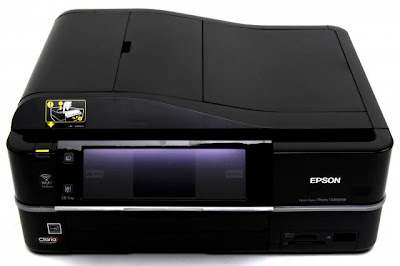
Before using the Software Resetter Epson Stylus Photo TX810FW, make sure:
a. Epson Stylus Photo Printer Drivers TX810FW already installed first, and make sure the printer is connect to the computer
b. Make sure you have the "Software Resetter Printer Epson Stylus Photo TX810FW"
c. Make sure that the damages requested in the printer reset counter (usually a red flame of the lamp on the printer all)
Here is a tutorial resetter Epson Stylus Photo TX810FW:
One. Prepare Adjustment Epson Stylus Photo Software TX810FW on your computer
2. If the software is compressed, the software used to extract resetter his Epson Stylus Photo TX810FW
3. Turn on the Printer
4. Open the folder resetter Epson Stylus Photo TX810FW Adjprog.exe you and run the file.
5. Click Particular adjustment mode menu entry to reset the printer counter
6. Find and click the Consumables menu maintenance counters, and then click OK
7. Put a check in the Main and Platen countre pad pad counters, and then click Check to find out the counter value at the time of blinking, and OK to continue the adjustment Epson tx810fw
Click initialization to change / reset the printer counter becomes zero, so the printer to be normal again. Then click OK to continue
8. Click Finish to end the process of resetting the counter Epson Stylus Photo TX810FW
9. Click Previous to return to main menu
10. Click Quit to exit the program counter reset Epson Stylus Photo TX810FW
11. Reset waste ink counter Epson Stylus Photo TX810FW already been done, turn off the printer for a while, then restart the printer, and wait until finished printer calibration

Wednesday, November 27, 2013
HP Laserjet 5 series service mode
1. Hold down the Menu+ and Value+ keys while powering on the printer. Hold the keys down until SERVICE MODE is displayed.
2. The interrupted power-on self test is resumed. If the test completes successfully, the message SERVICE MODE is displayed.
3. To exit service mode, press the Go button.
Read more...
2. The interrupted power-on self test is resumed. If the test completes successfully, the message SERVICE MODE is displayed.
3. To exit service mode, press the Go button.
Tuesday, November 26, 2013
How to reset the protection counter of Epson Stylus R7880
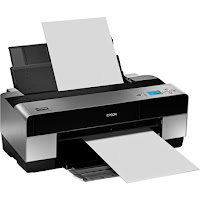
Epson Stylus Pro R7880 Adjustment Program
FIX PRINTER ERROR "parts inside printer end service life, waste ink pad counter overflow error"
Please follow the steps below to reset the protection counter effectively.
- Double click AdjProg.exe.
- Click “Accept” button.
- Click "Select" button. and select your printer model then click "OK"
- Click “Particular adjustment mode” button.
- Select on “Waste ink pad counter” and click “OK” button.
- Click on “Initialization” button and the program will reset the protection counter.
- Turn off the printer as a program instructed then turn on again.
- Click “Finish” button. and its done!
Warning: You might end up with ink leaking out of the printer if you dont either replace the waste ink pad or install external waste bin.
Subscribe to:
Posts (Atom)